Your Figma design is perfect down to the last pixel.
Excited, you pass it on to your developer, who now needs to spend days writing all the code and component logic from scratch. Maybe your final product looks the same, maybe it doesn’t. The entire process is time consuming and resource intensive.
AI changes that entirely. You can now turn your Figma design into code in minutes and hours rather than days.
This guide covers every major Figma to code AI tool available, as well as how to use them. Whether you are a founder evaluating tools, a designer, or a developer looking for a better process, this is the resource you need.
A Brief History of Figma Code
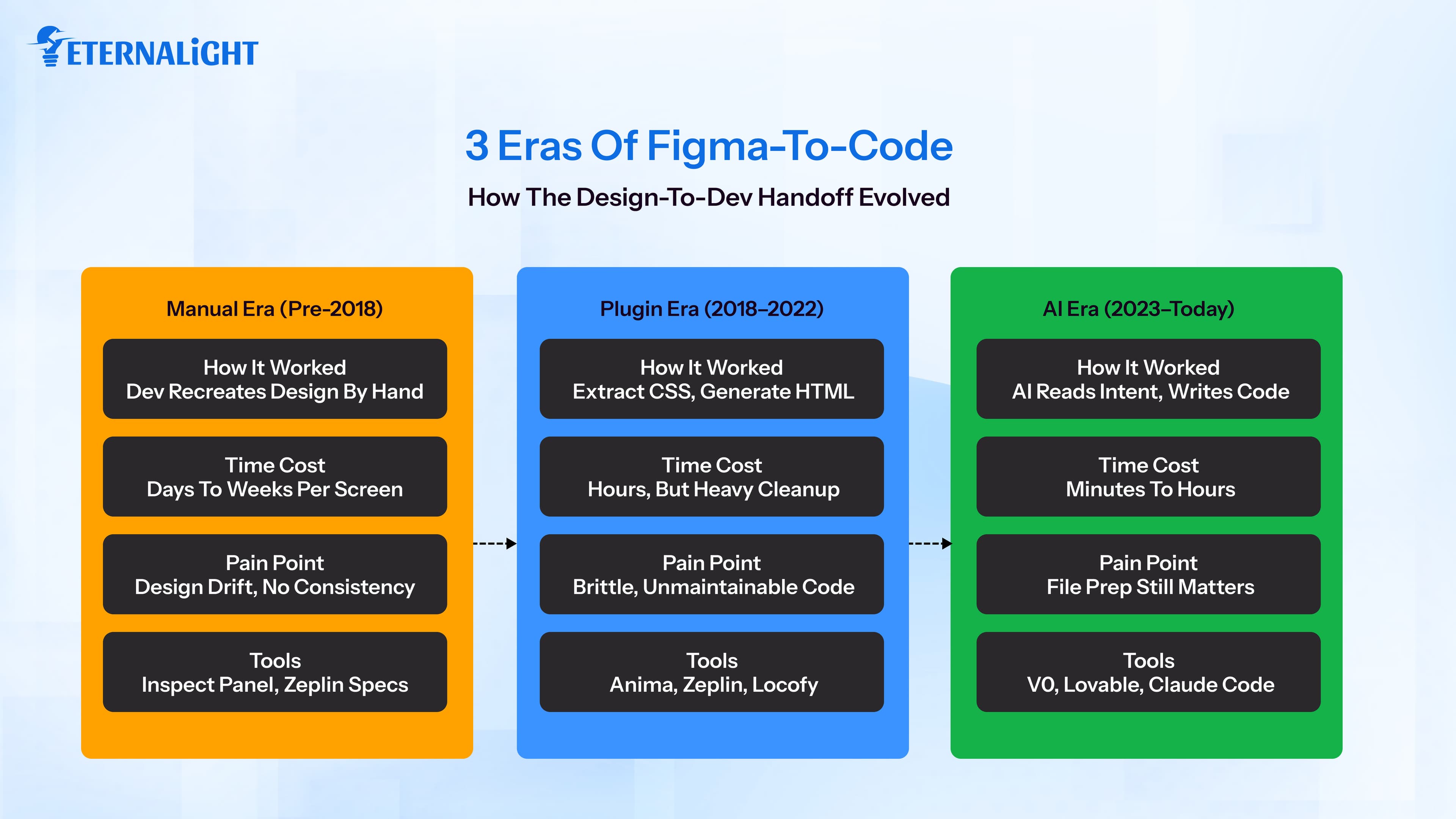
To truly appreciate the power of modern Figma to code AI tools, we must take a look back at the cumbersome processes that have defined it in the first place.
For years, design to code meant a developer opening a Figma file, inspecting the spacing, typography, and colors, and then manually proceeding to reconstruct the design in code. This was both error-prone and time consuming, but there was no workaround.
Here’s where the first generation of plugins came in. Tools like Anima and Zeplin tried to bridge the gap. They could extract CSS values and autogenerate rudimentary HTML code. However, the code they produced only worked with simple layouts and designs. Anything with interactivity, responsiveness, or complex logic requires a developer to write it.
The second generation brought framework-specific output. Some plugins started generating React or Vue components. But the code quality still remained fragile and brittle, and the output barely fit into an existing codebase without requiring some refactoring.
Enter the era of AI. This is where the ability to reason and mimic human intelligence could finally be put to good use. Understanding design intent rather than just extracting values changed everything. Today the best Figma to code AI tools understand component hierarchy, interaction states, and produce code that matches a developer’s.
How to Turn Figma into Code with AI
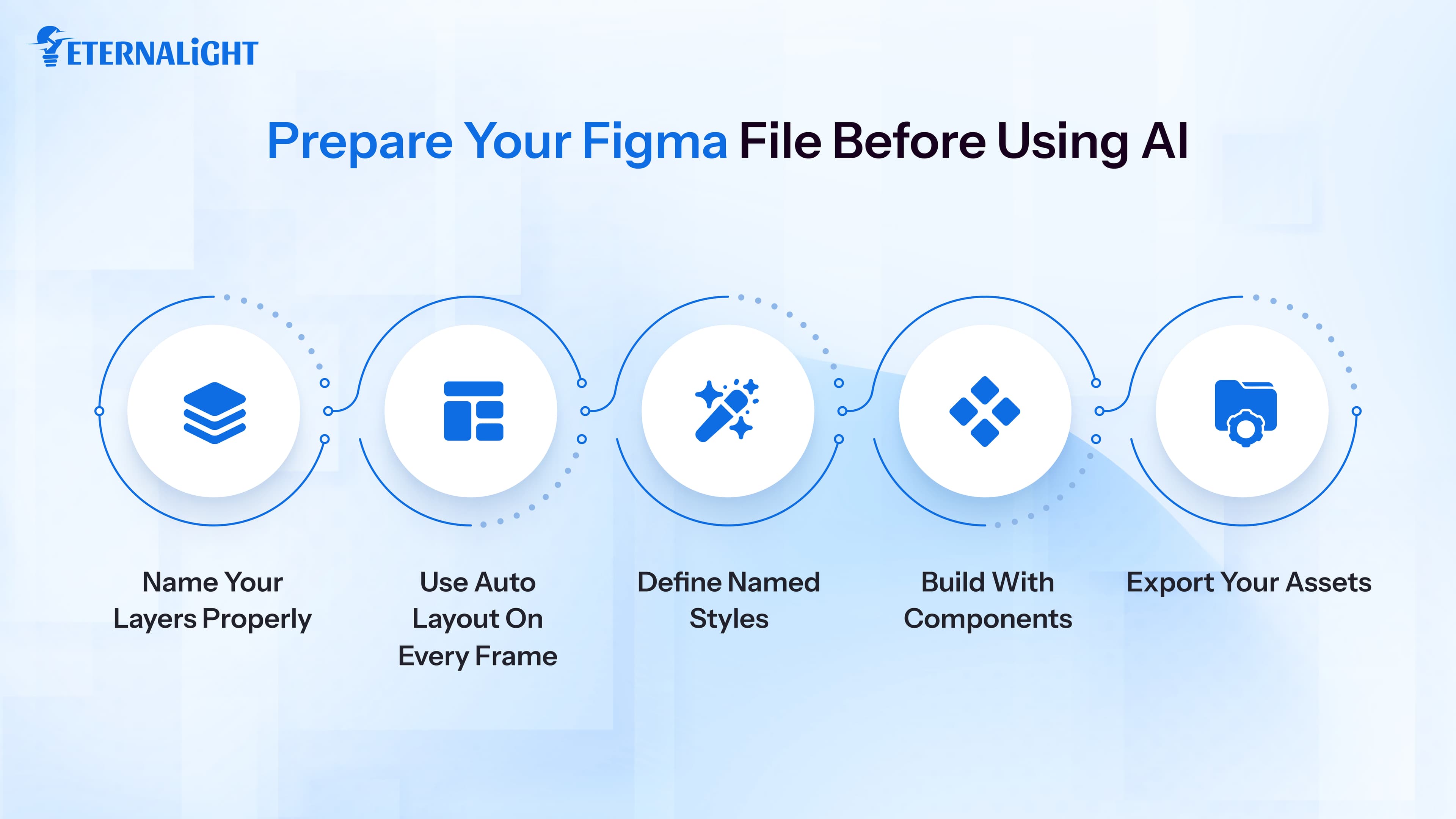
Before any tool enters the picture, your Figma file needs to be ready. Most teams skip this step and blame the tool when results are mediocre. The file is almost always the problem.
Prerequisites and How To Prepare Your Figma File for AI Tools
AI tools perform their best when the data you give them is flawless. The output quality highly depends on your input quality. Here are some prerequisites you need to focus on and what you need to get right before you use the AI tools to generate code.
- Name your layers properly: Ensure your components are named properly and correctly. A name like "Rectangle 12" may confuse the AI, but a name like "CardContainer" won’t. AI tools use these names when generating component names, CSS classes, and file structures. If the names are vague, the AI could get confused and produce incorrect code.
- Use auto layout on every frame: Auto layout maps directly to the CSS flexbox. When your design uses it correctly, the output is responsive and accurate. Without it, the AI makes assumptions about layout that could be wrong and cause problems.
- Define named styles: Set up color styles, text styles, and effect styles in Figma. These will become design tokens in your code. CSS variables, Tailwind config values, and design system constants all rely on this being done properly.
- Build with components: You shouldn’t have a button used 30 times but made from scratch each time. Try to build as much as possible with Figma components. This signals to AI tools that the element should become a reusable code component.
- Export your assets: Every icon, image, and illustration should be exported and safeguarded. AI tools can’t guess what a placeholder rectangle looks like. Having your assets exported and backed up is always a good choice.
These are some of the basic prerequisites that, when followed, help make the Figma to Code AI tool’s job easier.
The Top AI Platforms for Figma to Code
Take a look at some of the top AI platforms that you can use to convert your figma designs to code.
v0 by Vercel
v0 is one of the most widely used Figma-to-code AI tools for React teams. It generates clean Tailwind and shadcn/ui components from screenshots and text prompts. It is one of the most widely used Figma-to-code AI tools in 2026, particularly for teams building on the Vercel and Next.js ecosystem.
How to convert your Figma design using v0:
- In Figma, select your frame and export it as a PNG at 2x resolution.
- Open v0.dev and start a new project.
- Click the image icon in the prompt field and upload your PNG.
- Write a specific prompt. An example of a specific and good prompt would be: "Generate a React pricing card component using Tailwind CSS and shadcn/ui. Primary button color is #2563EB. Use the Card component from shadcn for the wrapper."
- v0 generates the component and shows a live preview on the right side of the screen.
- Use the chat to refine and make any changes needed.
- Once it matches your design, click "Copy code" or open it in CodeSandbox to test.
- Paste the component into your project directory and import it where needed.
v0 does not connect to Figma files directly. You work from screenshots. For teams on Next.js with Tailwind already configured, the output can be added to projects with no adjustment needed.
Lovable AI
Lovable builds full applications from design references and natural language descriptions. You can go from Figma design to a deployed product in one session. Lovable is a full stack AI app builder. It is one of the most popular Figma to code AI tools.
How to convert your Figma design using Lovable:
- Sign in at lovable.dev and click "New project."
- In the prompt field, describe your application with specific feature requirements.
- Attach screenshots of your Figma designs as visual references using the attachment icon.
- Lovable generates a working application with frontend, routing, and basic backend logic together.
- Use the component panel on the left to navigate to specific sections and make targeted edits.
- Click "Deploy" for a shareable live URL or "Export" to download the full source code.
Lovable removed its direct Figma import button in favor of a prompt-first approach. The current 2026 "Pro" workflow involves using Builder.io as a bridge.
Replit (Replit Agent)
Replit Agent builds and runs applications entirely in the browser. You write, test, debug, and deploy all from one place. The Replit Agent builds alongside you in real time. It makes the experience feel more like guided development than automated generation.
How to convert your Figma design using Replit Agent:
- Go to replit.com and create a new Repl. Choose React or HTML/CSS/JS as your template.
- Open the Agent panel from the left sidebar.
- Open the Agent panel and start a conversation. Describe your application and upload your Figma exports as visual context.
- The Agent scaffolds your project, writes the component files, and installs dependencies. Every file it creates is visible in the file explorer as it works.
- Review the live preview in the right panel. Compare it to your Figma design.
- If you need to make changes, you can do so. Once the output is right, click "Export" to download the project files for local development.
Replit Agent is best for new projects. It is one of the most accessible Figma to code AI tools for founders who want working code without managing a local development setup.
Cursor
Cursor is an AI-powered code editor built on VS Code. For Figma to code workflows, it is the easiest option for developers who would like to stay in their existing IDE. You paste Figma screenshots directly into the chat panel, and Cursor then generates code.
How to convert your Figma design using Cursor:
- Open your project in Cursor.
- Take a screenshot of the Figma component or page you want to build.
- Open the Cursor chat or Composer panel with Command K (Ctrl K on Windows).
- Paste or drag the screenshot into the panel.
- Write a prompt that references your project conventions.
- Cursor generates the component and is aware of other files in your project. It will use your existing Button and Input components if they match what the design calls for.
- For teams that use Figma MCP (Model Context Protocol), you can connect Cursor directly to Figma as a live data source. This gives Cursor access to your actual layer names, spacing values, and color tokens without screenshots.
- Select any block of generated code, press Command K, and ask for targeted changes inline.
Cursor gives developers the most control of any tool on this list. The AI works inside your codebase, which makes it the right choice if code quality and maintainability are a priority.
Claude Code
Figma to Claude code is one of the most powerful workflows available in 2026. Claude Code is Anthropic's command line AI coding agent. It does not generate a component in isolation. It reads your entire project directory, understands your conventions, and produces code that belongs in your codebase rather than code template code.
How to convert your Figma design using Claude Code:
- Install Claude Code via npm: npm install -g @anthropic-ai/claude-code
- Navigate to your project directory in the terminal and run claude to start a session.
- Export the relevant Figma screen as a PNG, or connect Figma MCP to give Claude Code live access to your design file data without any manual export.
- In the Claude Code session, reference the design and give it project context. Claude Code reads your codebase, identifies your patterns, and generates a component based on your codebase information.
- Claude Code shows you a full diff of every proposed change before applying anything. Review and approve each one. You can also ask it to write tests immediately after.
Claude Code handles longer context and more complex instructions better than most tools. It is strong when your design includes custom logic, not just static logic.
Codex (OpenAI)
OpenAI Codex operates as a cloud-based autonomous coding agent through the OpenAI platform. You define a task, and it handles it independently, writing the code, running it in a sandboxed environment, fixing errors, and returning the result as a pull request in your repository. For Figma design to code work, it handles bulk component generation particularly well.
How to convert your Figma design using Codex:
- Access Codex at platform.openai.com in the Codex section.
- Connect your GitHub repository, so Codex has context on your project structure.
- Create a new Codex task. Attach your Figma design exports or write a detailed component specification.
- Define the scope. For example: "Build React components for the five screens attached. Use TypeScript and Tailwind CSS. Reference the existing component library in /src/components. Write a Storybook story for each new component."
- Codex creates a sandboxed environment, writes the code, runs it, identifies errors, and iterates until the task completes, or it flags a decision for you.
- Review the completed work in a pull request that Codex opens directly in your GitHub repository.
- Merge after your review.
Codex is strong for clean HTML, CSS, and JavaScript output from a design. For teams already working with OpenAI integration and automation, Codex fits naturally into an AI-first development stack.
Builder.io
Builder.io offers one of the most direct Figma-to-code integrations available. Their plugin converts selected frames to code without you ever leaving Figma. For enterprise teams, the ability to visually edit the generated pages after export is a good advantage that no other tool in this list provides.
How to convert your Figma design using Builder.io :
- Install the Builder.io plugin from the Figma Community. Search for "Builder.io" and click Install.
- Open your Figma file and select the frames or component groups you want to convert.
- Open the Builder.io plugin from the Plugins menu.
- Choose your target framework: React, Vue, Angular, Qwik, or plain HTML and CSS.
- Click Convert. Builder.io's AI analyzes the selected frames and generates the code.
- In the plugin panel, review the output. If the output is as desired, copy the code directly or sync it to your Builder.io account.
Builder.io includes a headless CMS layer on top of everything it generates. Marketing teams can edit the pages visually after the initial build, without touching the codebase. For enterprise projects with multiple stakeholders across product, marketing, and engineering, this offers a great advantage.
Rocket (rocket.new)
Rocket is a newer AI app builder that is focused on getting your design to a deployed application as fast as possible. It supports image inputs and handles full application generation from your Figma exports with a straightforward and easy to use interface.
How to convert your Figma design using Rocket:
- Export your Figma screens as PNG images.
- Go to rocket.new and start a new project.
- Upload your Figma screenshots and describe what you need built. Be specific about the functionality. "Build an e-commerce product page that matches this design. Users should be able to select size and color variants, view additional product images, and add items to a cart."
- Rocket generates the full application and shows a live preview.
- Use the visual editor to adjust layout and content.
- Deploy directly from the platform to your domain.
Rocket continues to mature and works best on small to medium complexity applications.
Key Features to Look for in Figma to Code Tools
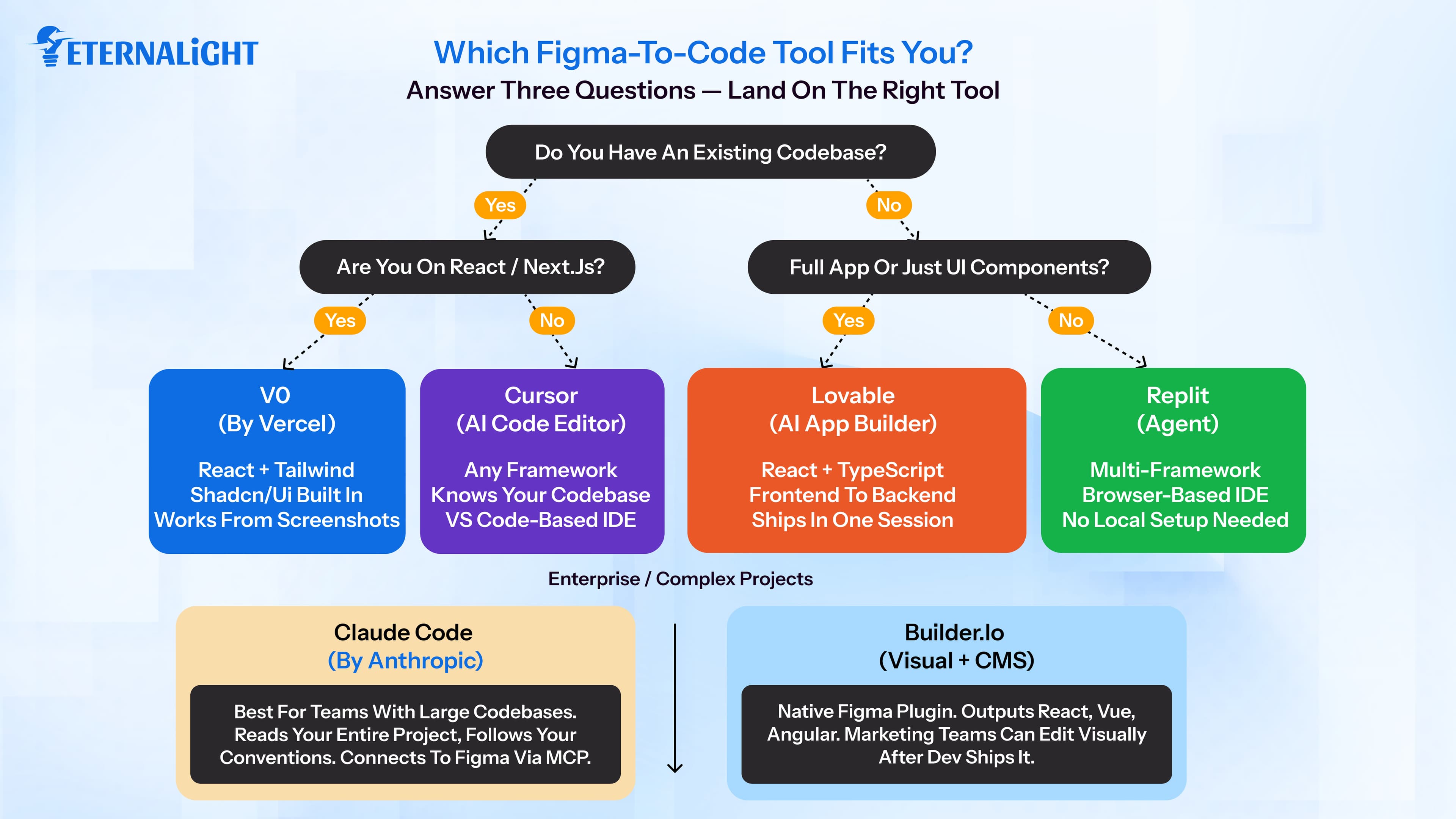
Not every Figma to code AI tool is going to be worth your time to fit your design to code needs. The market is filled with multiple such tools. Here are the things to look for when getting started with a tool:
Framework support: Does it generate code in your stack? React, Vue, Angular, Svelte, or plain HTML? Confirm this before committing to any tool. Some only support one framework or limited frameworks.
Design fidelity: How closely does the generated code match the original? The difference between a preview screenshot and the actual rendered output can be huge. Ensure it matches your design perfectly.
Responsiveness by default: Does the tool generate responsive layouts automatically? Mobile-first is a baseline requirement in 2026. Look for tools that automatically generate layouts that are responsive, to save time.
Code quality: Always read the code output. Check whether it is readable and maintainable? Remove any hardcoded values and inline styles. A code quality check helps mitigate problems like technical debt.
Integration depth: Does it have native Figma access or does it work from screenshots? Native integrations produce better results because they see the full design data, not a flattened image.
Iterability: Can you refine the output through follow-up prompts? For quick prototypes, a single iteration design is fine. But for production work, you require the ability to steer the output progressively.
Keeping all these in mind when looking for the right tool will help make your tool choice easier. These are some of the key features and use cases of the tools discussed before:
Tool | Primary Framework | Key Feature | Ideal Use Case |
v0 | React/Tailwind | shadcn/ui deep integration | UI-heavy marketing and admin dashboards |
Lovable | React/TypeScript | Visual Edits straight to prod | Rapid SaaS MVPs and prototypes |
Replit | Multi-framework | Browser automation & QA agents | Rapid full-stack prototyping in the cloud |
Cursor | Existing Project Stack | Shadow Workspace (pre-tested code) | Professional software engineering |
Claude Code | Multi-framework | Bidirectional Code-to-Canvas via MCP | Agile design, dev roundtrips, and DLS generation |
Codex | Enterprise Polyglot | Multi-agent autonomous workflows | Large-scale migrations and bulk implementations |
Builder.io | React/Next.js/Vue | Design System Component Mapping | CMS-integrated enterprise web experiences |
Rocket | React/React Native | Auto-backend (Supabase) setup | Figma to live mobile/web app in minutes |
What a Modern Figma to Code Workflow Looks Like
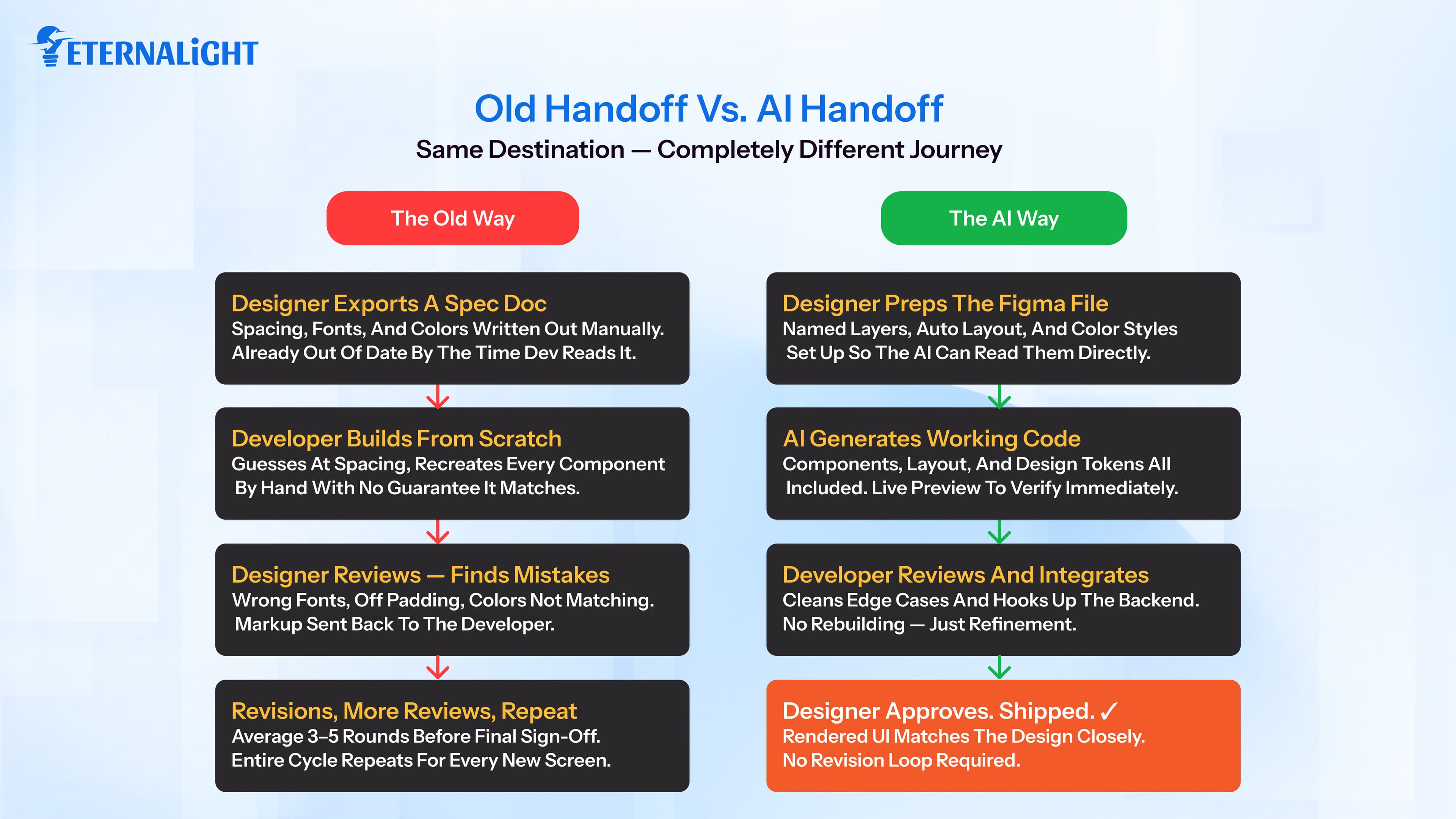
The old workflow, as discussed in the history of figma to code tools, is now completely defunct.
The old way worked like this: A designer exports a specification document and hands it off. The developer then builds the UI from scratch and presents a first draft weeks later. The designer then finds mistakes, and the developer rectifies them. Rinse, repeat till the cycle ends. It was time consuming and resource intensive.
The new tools change the workflow entirely.
This is how the new workflow looks like: The designer finishes the Figma file with properly named components and design tokens. They run it through a Figma to code converter and get a working base within hours. The developer then reviews the generated code, cleans it up, and integrates it with the existing system. The designer reviews the actual rendered UI. The cycle finished way faster and requires less manual work on both ends.
AI is being integrated into various organisations right now. A figma converter AI tool is just one of them. AI tools for software development is being adopted in many companies, from early stage startups to industry giants.
Conclusion
The transition from old to new, whether it be in the technology industry or in a highly specific field like figma to code tools, is changing how things have been run.
Teams building design workflows nowadays have a headstart and will be ahead of the curve when the next generation of tools arrives. The knowledge of how to use them effectively takes time to develop, and the chance to do that is now. Designers and developers are both looking to minimize their manual work and find an efficient way to bring design concepts to reality. Figma to code AI tools helps with that.
The foundation still matters more than the tool. The designer and developer need good domain expertise and knowledge, as well as an idea of how to use the tools correctly. If you can get the figma file right first and pick the right tool, you’re halfway there.
AI is the bridge. Use it to your advantage and build wisely.

Gauri Pandey
Technical Content Writer
Gauri Pandey is a Technical Content Writer at Eternalight Infotech. She uses her expertise to break down complex topics into simple, value-driven narratives, bridging the gap between technology and real-world applications.
Frequently Asked Questions
It depends on your stack. Builder.io and Figma Make are best for native Figma integration. v0 is best for React and Next.js. Figma to Claude code using Claude Code is best for teams with existing codebases who need context aware output that fits their architecture. Lovable suits founders who want to go from design to a full stack application fast without a dedicated dev team.
Yes. Tools like Figma Make, Builder.io, and Lovable generate working code from Figma designs with minimal manual input. Quality improves significantly when the file uses Auto Layout, component structure, and proper layer naming. A well prepared file is what separates a useful result from a disappointing one.
Figma to Claude code means using Anthropic's Claude Code command line agent to convert Figma designs into code. Unlike tools that generate standalone components, Claude Code reads your entire existing project and produces code that follows your architecture, naming conventions, and component patterns rather than generating a generic template.
Not for tools like Lovable, Rocket, and v0, which are built for users without a coding background. For production grade applications, having a developer review the generated code is still recommended to catch edge cases, accessibility gaps, and integration issues that AI tools can miss.
Builder.io and Claude Code are the strongest options for enterprise contexts. Builder.io provides multi-framework output and a visual CMS layer for non-developer editing after generation. Claude Code generates code that follows your established codebase conventions, which matters most in large, long-lived applications where consistency is critical.
Related Blogs
 AI & ML17 Mins
AI-Ready Data Architecture: A Complete Guide for Modern AI
Learn how AI-ready data architecture works, its key components, framework, how to build it, and how it supports generative AI, machine learning, and AI agents.
 AI & ML16 Mins
LangChain vs LangGraph: Which Fits Your AI Agent Workflows?
Compare LangChain vs LangGraph to understand their key differences, use cases, and how each framework fits modern AI agent workflows.
- AI & ML9 Mins
Comparison of n8n vs LangGraph: Which Fits Your Project
Compare n8n vs LangGraph to understand their strengths, use cases, AI agent capabilities, scalability, and governance, and choose the right fit for your project.